21 June 2026
Unifi Design Center
Intro
Unifi offer a simple design planning tool which allows you to build a network rack, design network topology, asses wifi and camera coverage and purchase the devices.
It also offers the ability to save your designs (once logged in) and share and collobrate on your designs with customers or installers (if you're not undertaking the work yourslef).
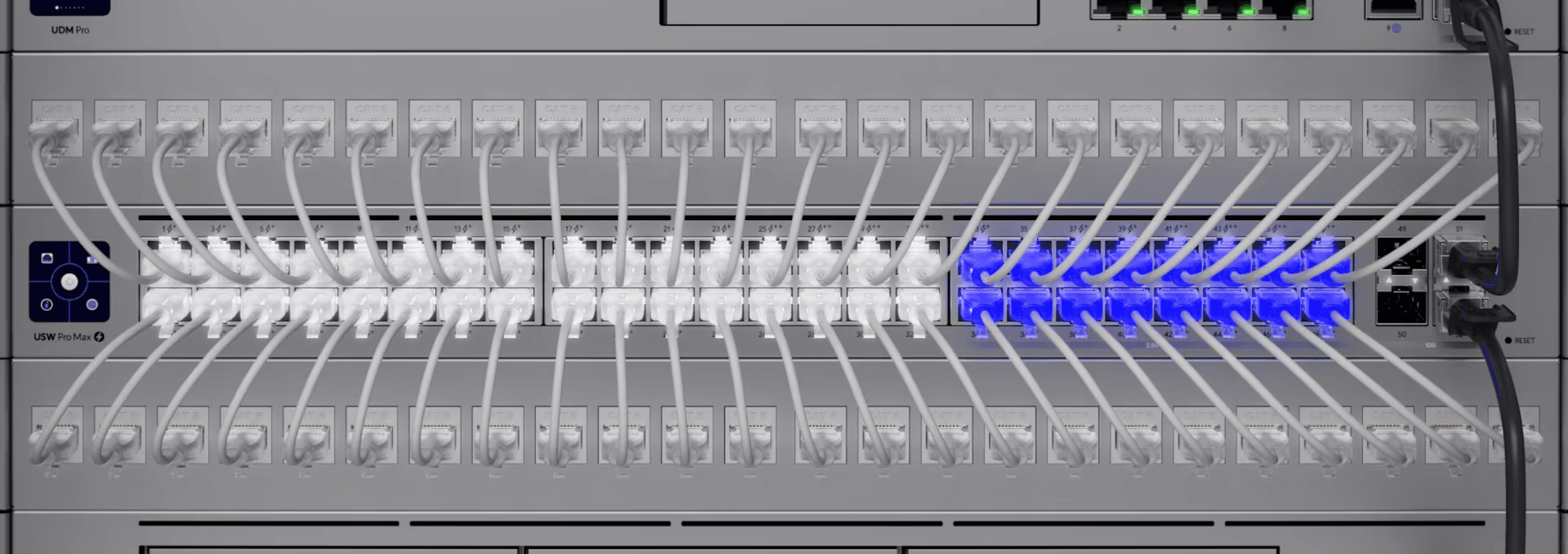
Available at https://design.ui.com/ on initial login you're presented with a wizard view of a fully spec'd out rack:

Projects
You organise your plans and designs into projects.

A logic mapping would be one project per client. From there you can upload images of a floor plan or if you have an iPhone with LiDAR support, e.g. iPhone 17 Pro you can scan the building to create one - just download the Unifi Design App.
Floor Plan
Once you've uploaded the floor plan you should click on the scale icon and give a measurement so that planning tool can understand the size and proportions of the building. You'll need to know the length of the building.
Then you need to start adding walls, doors and windows to give an idea of the building's layout which will help with signal degregation that will help with access point and camera placements:
Adding Devices
Adding devices is simple and can be done in different views.
You use the rack view for adding devices that belong in your rack and use the floor plan view to add device across the buildings.
In the floor plan view click on Add Devices search for the device and then drag it on to the floor plan
If you've place a camera or a wireless access point you can then use the toggle at the top of the page to see the potential coverage of either device. This will help with optimising the location of cameras and wireless access points to gain maximum coverage.
Running Cables
It's also possible to have cable runs using different types to try and give you or the installer and idea of where the cables should go.
Ideally you'll have as many cable runs as possible as cables give lower latency, suffer from less interference then wireless and are fully duplex.
3D View
Another cool feature is 3D view. Once you have setup the floor plan and configured the room with walls, windows and doors you can then view your floor plan in 3D.
Topology View
The topological view is great for giving you a glance at all the devices in your design and thier connections. You have the ability to select which ports which devices connect to and can pull information like power draw from PoE (Power over Ethernet) devices.

Share
The share view is extremely useful and provides a summary of all the design information in one view which can be exported as a PDF. One notable feature is the Bill of Materials which can be copied out and used as an invoice for clients.
Checkout
Lastly you can checkout all of the devices and it will be automatically added to your basket where you can purchase directly from Unifi.