7 July 2026
Scheduling Weekly Reviews with Claude

Creating Routines in Claude Code
Creating routines in Claude Code is a simple way to schedule an activity which you can use to perform actions on your application on a schedule or trigger.
For example, I have created a routine which reviews my application's codebase, the current deployed site and then produces an artifact with some recommendations; each with a priority and complexity in a tabular format.
The artifact page has an initial summary of the total number of findings along with the total number of findings per priority.
This document can then be handed over to another agent who can implement the changes based on the priority or I can review the changes and determine what to implement and what is not needed.
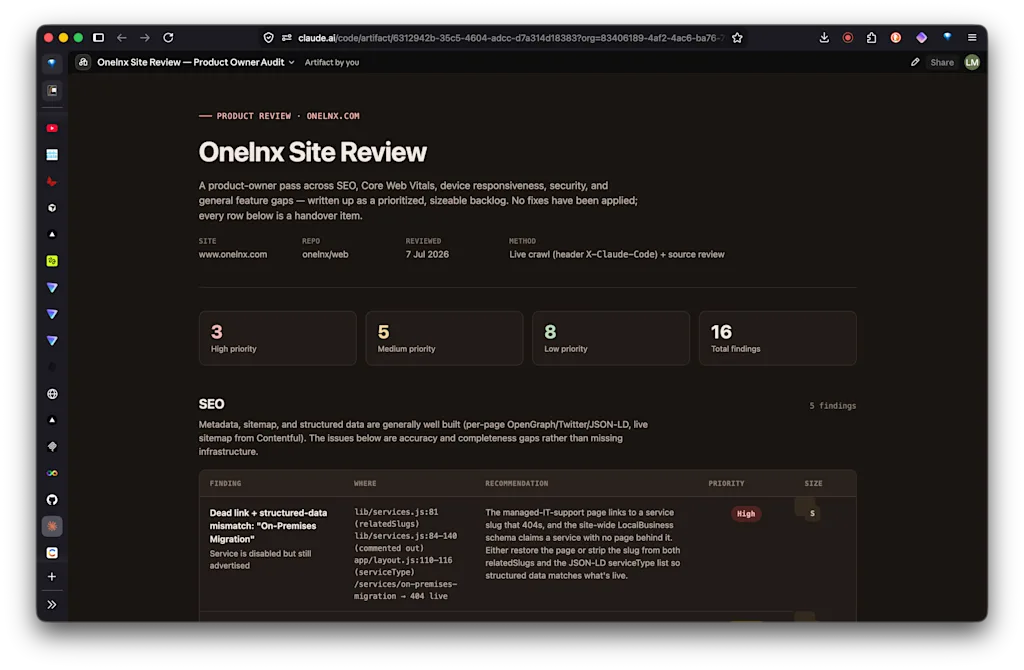
Further down the artifact page there a set tables with the details of the recommendations along with their priority and complexity.
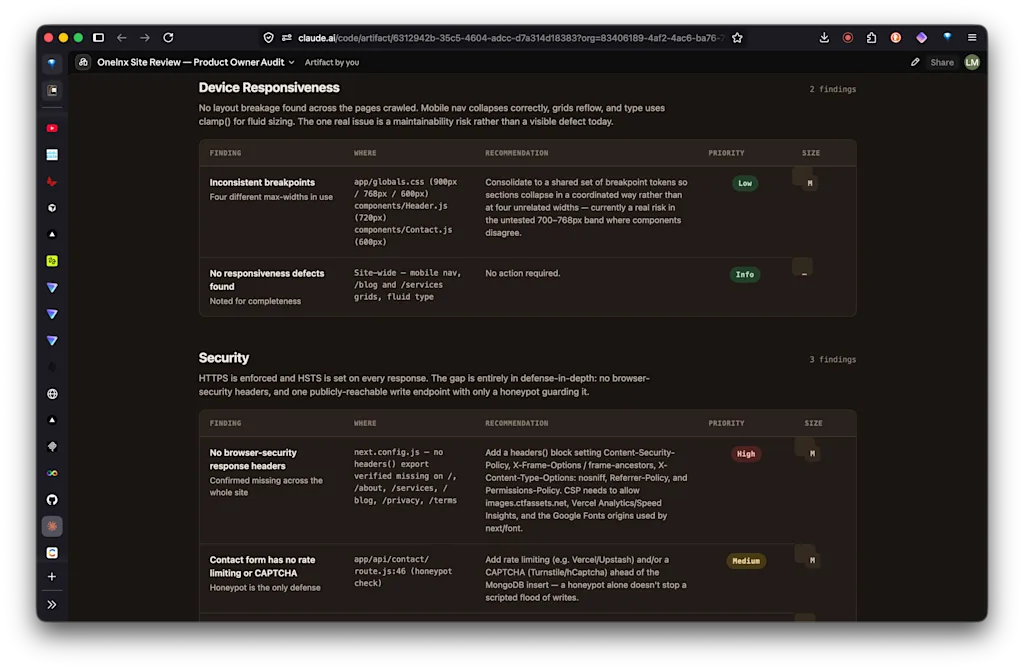
The recommendations are human readable, easy to understand and can be fed into an "implementation" agent to remediate the issues.
Setup
In order to configure routines using the Claude Code desktop app, you need to do the following:
Enable Routines in Claude
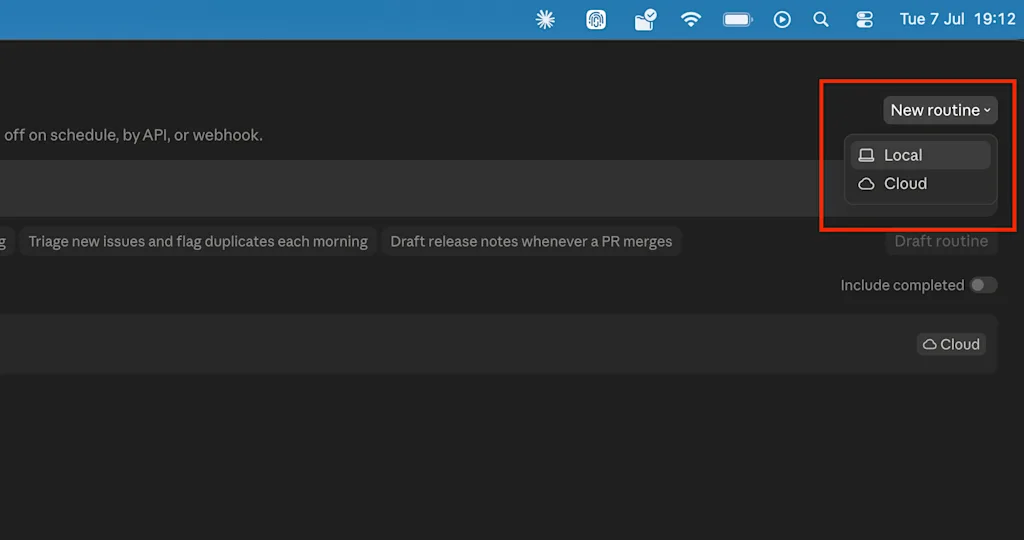
Once in Claude Code click into Routines and create a new one.
To ensure that this routine can run without any interruptions you should select to run it in the Cloud.
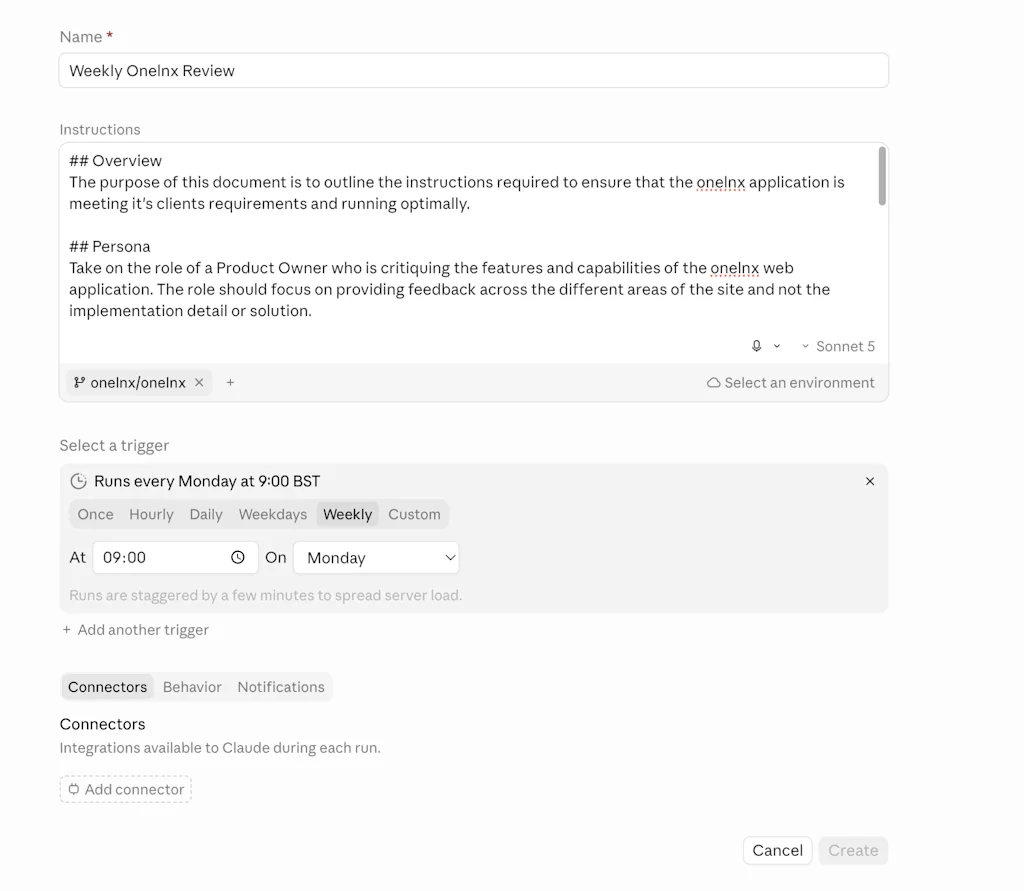
Provde an clear name and a detailed description of what the routine should do. For example my routine is called Weekly onelnx Review
My description is available here: https://www.onelnx.com/claude-routine-description.txt This outlines the instructions that the routine will follow.
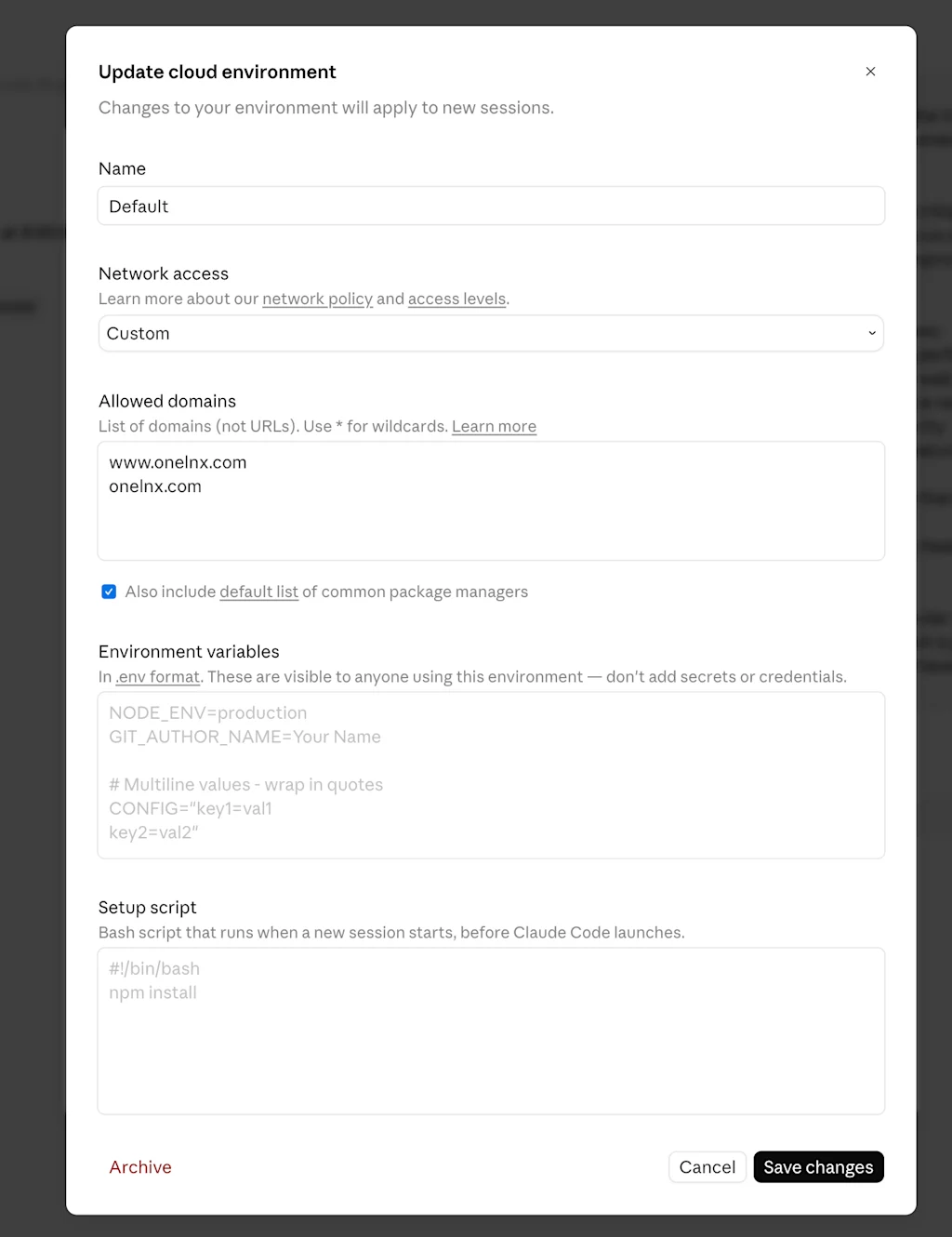
Ensure that you have setup an environment which you'll need to select when creating your routine. You can use the custom option so that you can provide a list of allowed domains that Claude can use to access your application.
Select the Schedule trigger. My routine runs every Monday at 08:00am.
GitHub Integration
Also as it's running in the Cloud it should have access to the GitHub repository. This can be done by going into Settings, Connectors and clicking GitHub Integration. This will authorise Claude against GitHub (but at the time of writing) won't grant access to any repos.
In order to install the Claude app into GitHub and grant access to your repo you need to visit the following URL while signed into your GitHub account: https://github.com/apps/claude From there you'll be taken to an auth screen where you can select the appropriate repo
 Now Claude Code will have access to your GitHub repo and can read the application files remotely.